Showing posts with label SharePoint 2010. Show all posts

Tuesday, February 15, 2011

How to remove a bad Web Part from SharePoint 2010

More often than I would like, a custom web part I’ve added to a page throws an exception. If you followed my previous blog on “An unexpected error has occurred,” and enabled CallStack, then any unhandled exception will cause the whole page to fail—and there is no obvious way to remove the web part from the page.

Well, there is actually a simple way to remove the offending web part via the Web Part Maintenance page. Simply add a querystring parameter right on the offending page’s URL of “?contents=1".

So I am on a web part page:

image

Append parameter to querystring:

image

You will then be redirected to the appropriate Web Part Page Maintenance:

image

Now you can easily remove the offending web part.

Just to note, if the url of the page you are on already has existing querystring parameters, you should use “&contents=1” instead of “?contents=1”.

Wednesday, February 2, 2011

SharePoint 2007/2010–“An unexpected error has occurred.”

Want a real error message instead of “an unexpected error has occurred?”—read on, this post will describe how to do just that.

I’m sure every SharePoint developer has run across the infamous “unexpected error:”
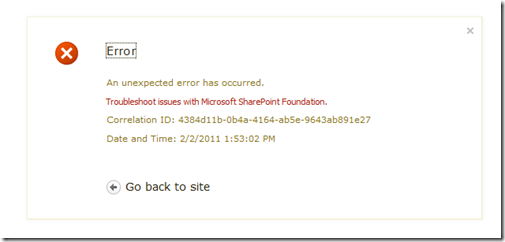
image

So… All you have to do is look in the extremely friendly ULS logs, conveniently located at:

For SharePoint 2010:

%Program Files%\Common Files\Microsoft Shared\Web Server Extensions\14\LOGS

For SharePoint 2007:

%Program Files%\Common Files\Microsoft Shared\Web Server Extensions\12\LOGS

And then, starting from the most recent file, start searching for the “Correlation ID” mentioned in the error. Note, there are quite a few ULS readers available that can make this a bit easier. However, also note, that, if you have multiple web front ends, it can be a task just figuring out which server logs to even look at.


When I eventually found the right log file and searched through using that Correlation ID until I found an error, I discovered this:

02/02/2011 13:53:00.91  w3wp.exe (0x1A80)                        0x0464 SharePoint Foundation          Runtime                        tkau Unexpected Microsoft.Reporting.WebForms.MissingReportServerConnectionInformationException: In remote mode, the Report Viewer control requires session state be enabled or Report Server connection information specified in the config file.    at
Microsoft.Reporting.WebForms.ReportViewer.EnsureSessionOrConfig() at Microsoft.Reporting.WebForms.SessionKeepAliveOperation.CreateRequest(ReportViewer viewer) at Microsoft.Reporting.WebForms.ReportViewerClientScript.SetViewerInfo(ReportViewer viewer, String reportAreaId, String promptAreaRowId, String docMapAreaId, String fixedTableId, String promptSplitterId, String docMapSplitterId, String docMapHeaderOverflowId, String directionCacheId, String browserModeCacheId) at Microsoft.Reporting.WebForms.ReportViewer.OnPreRender(EventArgs e) at System.W... 4384d11b-0b4a-4164-ab5e-9643ab891e27

In this particular case, I can see that I am using a control that requires Session State, but it’s not enabled. Wouldn’t it have been nice if instead of having to go through all of that log searching I could have just gotten a message like this:
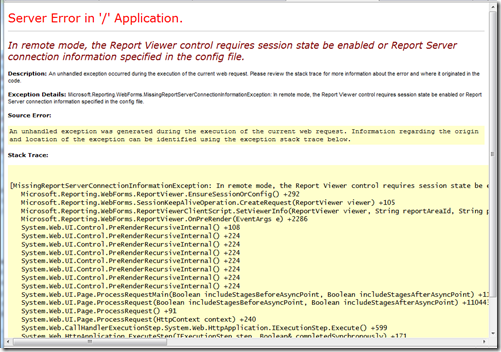

image


So, the first thing I do in my development environment is configure a few items in the web.config so that I get real error messages on the page. Please make sure that you do NOT use these settings in production, because aside from not wanting end users to see the hideous yellow and red error message and stack trace, these settings cause a good bit of overhead and will slow down your site unnecessarily.


Here are the settings I always set in my development SharePoint box, that will ensure I get the detailed message as shown above.


How to get the “real” error to show on web page:


1. Open the web.config for the appropriate web application. In my case, it’s located at:

c:\inetpub\wwwroot\wss\VirtualDirectories\80\web.config

2. Search for “<customErrors” – I usually just turn them completely off for my web.config:

    <customerrors mode="Off" />
If for you don't have a customErrors entry in your web.config, you can just add it. It is a child of system.web.

3. Search for “<compilation”—change or add the attribute “debug” and set it to true (here’s what my whole line looks like):

    <compilation batch="false" debug="true" optimizeCompilations="true">

4. Search for “<SafeMode” and set “CallStack” to "true (here’s my SafeMode node):

<SafeMode MaxControls="200" CallStack="true" DirectFileDependencies="10" TotalFileDependencies="50" AllowPageLevelTrace="false">


And… That’s it. You should now get “real” error messages right from the web page instead of having to dig through ULS logs!!

Thursday, January 27, 2011

The switch back to SSRS Native mode for Performance Reasons

I finally got around to posting a blog entry I had written a couple weeks ago about how to switch from SSRS Native to Integrated Mode. Well... Now I am having to switch everything back to Native Mode due to pitiful performance we were getting when displaying a report (using Integrated mode) in a web part.

My colleague, Melissa Coates did a wonderful job writing up our experiences with poor performance from SSRS, and I would recommend anyone considering a switch to SSRS Integrated mode read it.

Needless to say, I’m quite disappointed in having to revert back, as I was really looking forward to taking advantage some of the native SharePoint benefits of having the report rdl stored directly in a SharePoint library—we were going to have some custom workflows, approval process, an easy place to store metadata, and of course versioning.

No need to go into too much detail here on the reasons why, as Melissa wrote it all up so elegantly.

To sum it up briefly, Integrated mode makes an incredible amount of small requests between the web front end and the SSRS server, and none of the images can be cached because they are created on the fly—even if the same image (such as an up arrow trend indicator) are already displayed on the page 100 other times. Also, many of these requests appear to be done in a single thread, so there is a boatload of time waiting for a response for even the simplest of image or indicator.

And, if all of that extra overhead wasn’t enough, SharePoint 2010 uses AJAX in their new report viewer as opposed to the IFRAME method they used in previous version. While, I do like the AJAX control for other reasons, it has the nasty side affect of more synchronous-type processing when there are multiple report viewers on one page.

So, bottom line, we’re going back to native mode. And, thanks Melissa for your much more verbose and analytical write-up of the issues.

Friday, January 14, 2011

How to Switch from SSRS Native Mode to SharePoint Integrated Mode

I have been utilizing SSRS Native mode for a while, and recently, after setting up numerous environments with SharePoint and SSRS Native Mode, a decision was made to switch everything to SharePoint Integrated mode.

So I started out on my development box uninstalling Reporting Services, and reinstalling. This took forever, and as it turns out was completely unnecessary.

Below are the steps to switch an existing SSRS server to native mode. Note, that this does not include any steps for migrating your reports—you’ll have to do that separately. Also note, that you create a new SQL server instance with Reporting Services and have both Native and Integrated mode, but for my needs, I wanted to do a complete switch.

Switching to SSRS Integrated mode:

  1. Open SQL Reporting Services Configuration Manager on your SQL Server:
    ClickSQLReportingServiceConfigurationManager
  2. Click on Databases, and note the current “Report Server Mode” is “Native”
    SSRSNativeMode
  3. Select Change Database
    SSRSConfigurationManagerChangeDatabase
  4. Select “Create a new report server database,” and click “Next”
    SSRSConfigureChangeDatabase
  5. Enter your server name and credentials, and select “Next”
    SSRSConfigureVerifyDBServer
  6. Select a new “Database Name” and change “Report Server Mode” to “SharePoint Integrated Mode,” and click “Next”
    SSRSConfigureNewDBNameSelectIntegrated
  7. Enter authentication information, and click “Next”
    SSRSConfigureChangeDatabaseVerifyCredentials
  8. Verify Summary, and ensure “Report Server Mode:” is set to SharePoint integrated
    SSRSConfigureVerifyIntegrated
  9. Hopefully, everything went successfully!! Click Finish
    SSRSConfigureVerifySuccess
  10. In Reporting Services Configuration Manger, click on Web Service URL, and then click the URL link to open
    SSRSConfigureChangeDatabaseVerifyWebService
  11. You should get an error that reads something like this:

    Reporting Services Error:

    The report server has encountered a configuration error. If the report server is configured to use SharePoint integrated mode, verify that the server is joined to a SharePoint farm and that the Report Server service account has been granted access to the SharePoint farm. (rsServerConfigurationError)

    SSRSConfigurationWebServiceErrorPermission

    This error is expected, because we need to configure Reporting Services Integration in SharePoint. Continue to next step.

    If instead you get a something like this:

    Reporting Services Error

    The configuration parameter SharePointIntegrated is set to True but Share Point Object Model cannot be loaded. The error was: System.IO.FileNotFoundException: Could not load file or assembly 'Microsoft.SharePoint, Version=14.0.0.0, Culture=neutral, PublicKeyToken=71e9bce111e9429c' or one of its dependencies. The system cannot find the file specified.
    File name: 'Microsoft.SharePoint, Version=14.0.0.0, Culture=neutral, PublicKeyToken=71e9bce111e9429c'
       at Microsoft.ReportingServices.SharePoint.Objects.RSSPImpSecurity.set_StaticCatchAccessDeniedException(Boolean value)
       at Microsoft.ReportingServices.SharePoint.Server.SharePointServiceHelper..ctor()
       at Microsoft.ReportingServices.SharePoint.Server.SharePointServiceHelperFactory.get_ServiceHelper()


    SSRSReportingServiceErrorAfterSwitchingToIntegrated

    That’s a different issue entirely. That error is due to your SharePoint being configured in Farm mode, and the SQL server is not joined to the SharePoint Farm. That’s a bit out of scope for this post, but essentially, you just need to do a minimal installation of SharePoint on the SQL server and join it to the SharePoint Farm. More information on that can be found on msdn:
    How to: Install and Configure SharePoint Integration on Multiple Servers
    How to: Install a SharePoint Web Front-end on a Report Server Compter

    Note that if you did get that error, you must add the server to the farm before continuing to next step.

  12. Open up SharePoint Central Administration:
    SSRSConfigureSharePointCentralAdministration
  13. Go to “General Application Settings,” and click “Reporting Services Integration:”
    SSRSConfigureSharePointCentralAdministrationRSIntegration
  14. Fill out “Report Server Web Service URL,” and your credentials:
    SSRSConfigureSharePointCentralAdministrationSelectWebServiceURL
    Note that the Web Service URL should be what was specified in the Report Services Configuration Manager:
    SSRSConfigurationWebServiceUrl2
  15. If All went well, you should get a confirmation with lots of wonderful green success messages:
    SSRSConfigureSuccess
  16. Just to verify, now try going to the Web Service URL again in a browser, and you should get this:
    SSRSConfigurationWebServiceUrl3

That’s It!!  All done. Now your running in Integrated mode, and can start work on migrating your reports to SharePoint Libraries, and utilizing the updated Report Viewer Web Part.